Example 3
Figure 6 shows the dialog box from cc:Mail for Windows V2
that was displayed when the user chose the Save command from the File menu.
It could be used to save a message (and/or any or all of its file
attachments) out to disk. Users were confused by the term "item"
(as the term "attachment" was much more common in the UI). They
also didn't like having to click OK before entering a file name, as they
didn't know what the file would be called or where it would be saved by
default. They had to click OK and hope that cc:Mail would save the file
with an obvious name, not knowing that they would ever be prompted to enter
a file name. When OK was clicked, the Save Options dialog box was
dismissed and a secondary dialog box was displayed, allowing the user to
then enter or change the file name and location.
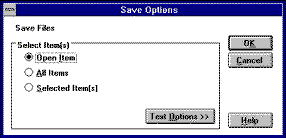
Figure 6. Before: Saving a Message and/or
Attachment(s)
The revised Save As dialog box is shown in Figure 7.
The default file location and name is displayed in a field and can be
changed. Alternatively, the Browse button displays an optional secondary
dialog box as shown in Figure 8. In addition, the wording
of the radio buttons was clarified regarding attachments and message text.
The "Text Options" button only contained settings related to the
message header, so is renamed and regrouped appropriately. And finally,
the Save Draft "feature" is made available here, where new users
often expected to find it.
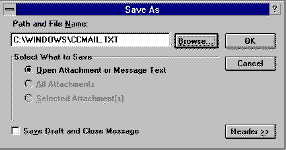
Figure 7. After: Saving a Message and/or
Attachment(s)
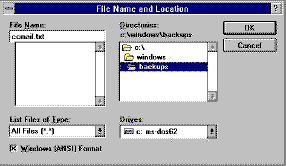
Figure 8. After: The Browse button displays this
secondary (optional) dialog box
Beginning of Document
|
Top of This Page (Example 3)
Example 1
|
Example 2
|
Example 4
|
Example 5
Conclusions